We may earn a commission from links on this page.
When you’re using devices that are always connected to the internet, it’s difficult to completely protect your privacy. Luckily, there are plenty of great privacy hacks for your iPhone, which you can use to make it hard for trackers and spies to collect your data and snoop on your business. From built-in solutions, like adjusting app permissions, to purchasing privacy screen protectors, here are 10 hacks every iPhone user should consider to protect their privacy.
Get yourself a privacy screen protector
No software privacy hack can protect you from people looking over your shoulder to memorize your password, or from peeking to see what you’re up to. What can protect you, however, is a privacy screen protector. I saw this first-hand: One of my friends recently tried to show me something on her iPhone, and I realized that I couldn’t see anything at all until her phone was directly in front of me.
These screen protectors can make it easier to use your phone in public spaces without worrying about who’s looking at its screen. That said, there are a few potential dealbreakers. These screen protectors are rather plasticky, and don’t feel as nice or smooth as your iPhone’s touchscreen. These products also lower your screen’s brightness. I don’t mind, but it can be a problem if you’re trying to use your phone in bright lighting. If you can live with these cons though, this is a cheap privacy hack that’s definitely worth considering.
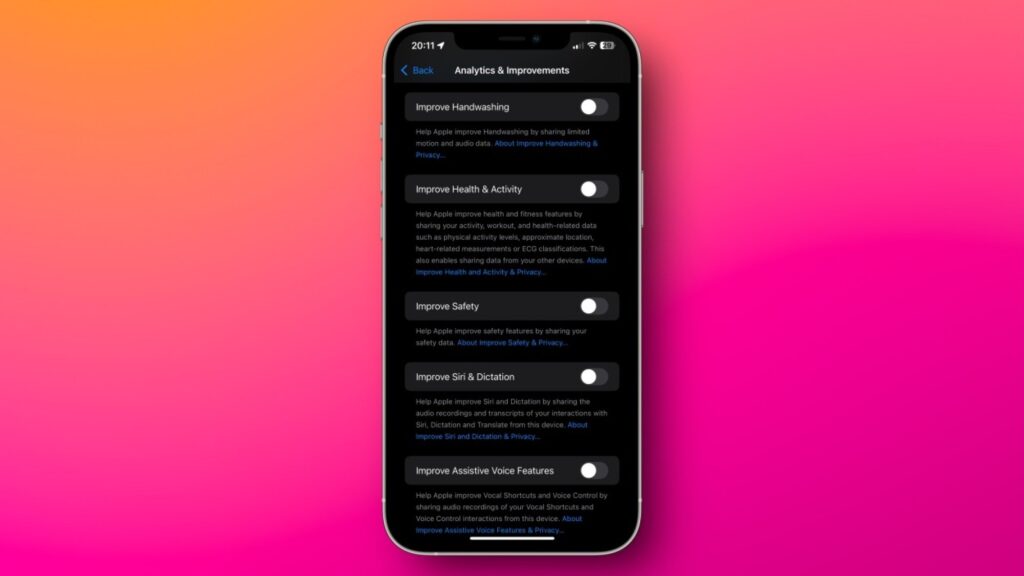
Stop Apple from collecting your data (as much as you can)
Credit: Pranay Parab
Apple is known for its privacy policies, but in recent years, its resolve seems to be weakening a bit. The company is pushing ads into its apps and your notifications, and it’s aggressively encouraging iPhone users to subscribe to Apple services. There’s not much you can do to block promotional materials coming from the company directly, but it’s still worth changing a few settings to limit Apple’s own ads. This includes reducing Apple’s data collection, too. Many of these options are available under Settings > Privacy & Security on your iPhone. On that page, you can navigate to these pages to disable quite a bit of tracking:
Carefully reviewing all options on these pages and disabling unnecessary features goes a long way in limiting Apple’s data collection.
Deny (or limit) app permissions whenever you can
I used to allow all permissions an app requested when I first opened it. Over time, I realized that this led to a lot of notification spam, unnecessary data collection, and significant battery drain if the app was tracking my location. That’s why I developed a new strategy: deny all permissions unless an app absolutely needs it. In general, I almost always deny permission to send notifications, access to contacts, location, camera, microphone, and photos.
Newer versions of iOS allow you to share just a few contacts or photos, and even restrict GPS access to an approximate location instead of a precise marker. All of these are available under Settings > Privacy & Security in case you missed them while setting up an app.
Consider deleting apps known to track you
While the App Tracking Transparency option on your iPhone does reduce data collection from many apps, it’s far from foolproof. In general, apps have access to far more data than their web versions, so if you can, you should try switching from apps to mobile websites wherever possible. If you delete apps such as Instagram, Facebook, or TikTok, and switch to logging in via Safari, you’ll give away much less data, and some of the data you would otherwise give to the web apps will be blocked or spiked by Safari’s privacy features, further protecting your data. As an added bonus, since web apps are generally a worse experience than dedicated apps, you’re also far less likely to fall into a doomscrolling trap. I’ve used this fairly effectively with social media apps, but you can’t always delete apps, like WhatsApp.
Install an adblocker (or use a better DNS)

Credit: Justin Pot
Installing an adblocker and a DNS app can do wonders for your iPhone privacy. Adblockers such as uBlock Origin are pretty good at blocking invasive tracking on your iPhone, but their effect is limited to Safari. To enhance the privacy of your internet traffic, you should consider installing an encrypted DNS app such as NextDNS, AdGuard DNS, or ControlD. All of these will block ads or trackers in most apps on your iPhone and safeguard you from some types of online security threats as well.
Safety Check is a must-have
Everyone should be using Safety Check on iPhone. This feature immediately lets you identify who you’re sharing what with, including passwords, fitness activity, your current location, calendars, notes, and other data. To check on it, head to Settings > Privacy & Security > Safety Check > Manage Sharing & Access. You can go through the prompts to review app permissions, and set up an emergency contact, which ensures that your data (and you) are safe. While you can manually access all these options in the Settings app, the Safety Check prompt lets you find all features without combing through multiple pages, which will save you a lot of time.
What do you think so far?

Credit: Lifehacker
A good password manager is also a must. Free password managers, such as the built-in Passwords app or BitWarden allow you to create unique, strong passwords for each website, which makes it far less likely to compromise your accounts. You can also use these apps to store your two-factor authentication codes to add an extra layer of security to your accounts.
Even better, these apps can manage passkeys to help you log in to your online accounts. Passkeys eliminate the need to remember passwords, and are far more resistant to phishing attacks that could compromise your accounts. For more information on passkeys, check out our full guide here.
Encrypt your data backups responsibly
You should strongly consider enabling encryption on your data backups. This includes your iCloud Backup, and backups of your messaging apps such as Telegram or WhatsApp. Encryption makes it far less likely for an unauthorized party to read what’s on your iPhone, as the data is totally scrambled without the key—which, in this case, is either your password or PIN. However, this is also where the danger lies. If you forget your backup password, even you won’t be able to access the backup to restore data if you need to. Again, use a password manager to store these passwords so you’ll never really forget.
This isn’t necessarily an iPhone privacy tip as much as it is a general privacy hack, but it’s worth mentioning. These days, trackers and hackers effectively use social media posts, photos, and videos to profile you. While there are plenty of steps you can take to limit the data you share on social media, you might not know you can remove identifying data from photos you post online. “Exif” data includes a host of stats about the hardware that took the image, including your camera make and model, shutter speed, focal length, and, perhaps most importantly, location. You don’t have to avoid sharing photos to protect this data, however: just remove the exif data before posting.
Lockdown Mode protects you from extreme attacks
Most people are never going to need to use Lockdown Mode, because it’s designed to protect your data when it’s under attack from government surveillance or from espionage. That said, it’s still worth knowing about this tool in case you ever face a cyberattack or if you suspect that your iPhone has been infected with spyware. Lockdown Mode disables message attachments, links and link previews, most incoming FaceTime calls, many Apple services, certain web technologies and fonts in Safari, and many other features.
I repeat that this level of extreme protection is unnecessary for most people, but if you do need it one day, you can go to Settings > Privacy & Security > Lockdown Mode to enable it.

Source link